Guides › Chinese keyboard
How to type in Chinese on your phone and computer
Maca Laoshi, Mandarin Chinese teacher
Updated October 20, 2026 · 8 min read

Add the simplified Chinese pinyin keyboard in your settings: on an iPhone, under General > Keyboard > Keyboards; on Android, from Gboard; on Windows, under Settings > Time & language; and on a Mac, in Keyboard settings. To type, you enter the pinyin without tones and pick the character from the list of candidates. If you see a character and don't know how to read it, use handwriting: you draw it with your finger and the keyboard recognizes it.
Which keyboard to choose
- Pinyin: you type how the word sounds and pick the character. It's the most practical option if you study with pinyin. If you're not sure how a syllable is spelled, check the pinyin chart.
- Handwriting: you draw the character with your finger. It's useful when you don't know how to read it.
iPhone and iPad
These steps work on iOS 26 and iOS 27, and they're the same on an iPad.
- Open the Settings app.
- Tap General, then Keyboard.
- Tap Keyboards, then Add New Keyboard.
- Choose simplified Chinese and select Pinyin (QWERTY). If you'd like, select Handwriting too.
To switch to Chinese while you type, touch and hold the Switch Keyboard key (or the Emoji button) and choose the keyboard. Suggestions appear at the top of the keyboard: tap a character to enter it, or swipe left to see more. The up arrow on the right opens the full list.
Android (Gboard)
Gboard is Google's keyboard; if your phone doesn't have it, install it from Google Play. Google notes that some of the steps only work on Android 7.0 and up.
- Open any app you can type in, like Gmail or Keep, and tap a text field.
- At the top of the keyboard, tap Settings.
- Tap Languages, then Add keyboard.
- Pick simplified Chinese and the layout you want to use. Tap Done.
For handwriting, go back to Languages, tap Chinese, swipe right and turn on the Handwriting layout (Google notes that it isn't available in every language: if you don't see it, it's not available). To switch languages while you type, touch and hold the space bar. You can also get there from your phone's settings: Settings > System > Keyboard > On-screen keyboard > Gboard > Languages.
Windows 11
The keyboard is called Microsoft Pinyin. You need an internet connection, because Windows downloads the language.
- Go to Start > Settings > Time & language > Language & region.
- Next to Preferred languages, select Add a language.
- Type “Chinese”, choose simplified Chinese (中文(简体)), select Next and then Install.
- When it's done, select the three dots next to Chinese > Language options. Under Keyboards, you should see Microsoft Pinyin; if it's not there, use Add a keyboard.
To switch keyboards, press Windows + Spacebar. With Microsoft Pinyin on, the Shift key switches between English and Chinese mode. The space bar selects the highlighted candidate, and each number key selects the candidate with that number.
 Test your Chinese
Improve your Chinese with our app, Macalaoshi Flashcards: 1,300+ words and characters to practice like this.
See the appMac
These steps work on macOS Tahoe 26 and macOS 27.
- Choose Apple menu > System Settings, then click Keyboard in the sidebar.
- Go to Text Input, then click Edit.
- Click the Add button and search for “Chinese, Simplified”.
- Select the Pinyin - Simplified input source and click Add.
To switch, press Control + Space bar, which takes you back to the last input source you used, or choose the language from the Input menu in the menu bar.
How typing with a pinyin keyboard works
- No tones: you type ping and pick 苹 from the list. It works the same way with whole words: nihao for 你好.
- Type ü with v: for 绿 (lǜ, green), you type lv. Apple documents this for its Pinyin keyboard on the Mac. If it doesn't work on your keyboard, look for the character in the list or handwrite it.
- An apostrophe separates syllables: xi'an gives you 西安 (Xī'ān, the city) and not 先 (xiān).
- Initials are enough on a Mac: jsj gives you 计算机 (jìsuànjī, computer). Apple calls this Abbreviated Pinyin.
Pinyin with tone marks (ā á ǎ à)
A Chinese keyboard types characters, not pinyin with tone marks. If you need the marks for your notes:
- Mac: add the ABC - Extended input source. Apple says you can use it to add tone marks when typing in pinyin. To see which key gives each mark, look at the keyboard layout in the input source settings while you press Option.
- iPhone or iPad with a physical keyboard: go to Settings > General > Keyboard > Hardware Keyboard, tap a language and choose the alternative layout ABC - Extended.
- Everywhere else, copy and paste from here: ā á ǎ à · ē é ě è · ī í ǐ ì · ō ó ǒ ò · ū ú ǔ ù · ǖ ǘ ǚ ǜ.
Handwriting when you don't know how to read it
It happens a lot with a sign or a menu on a trip: you see the character and don't know its pinyin. (If you're going to China, also see the Chinese phrases for travel.)
- iPhone and iPad: the simplified Chinese Handwriting keyboard.
- Android: Gboard's Handwriting layout, if it's available for Chinese.
- Mac: a Handwriting input source, which you add the same way as the pinyin one. You draw the character with your finger on the trackpad; the Trackpad Handwriting window opens with Control + Shift + Space bar.
- Windows: Microsoft Pinyin has a “U-mode” for entering characters by their strokes or components.
Apple notes that stroke order doesn't matter in Trackpad Handwriting. Even so, it's worth learning the correct order for writing on paper: we explain it in Chinese stroke order.
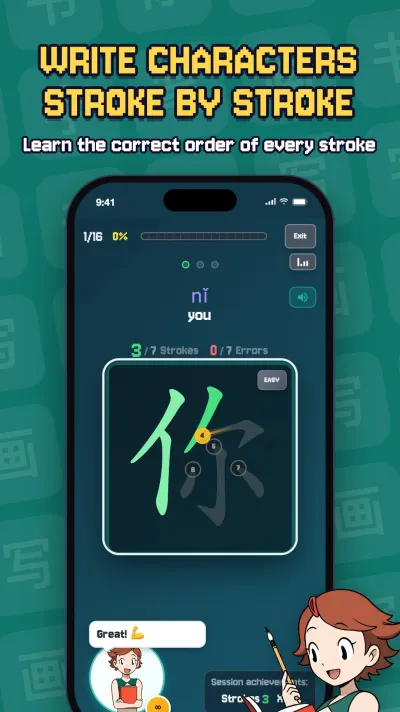
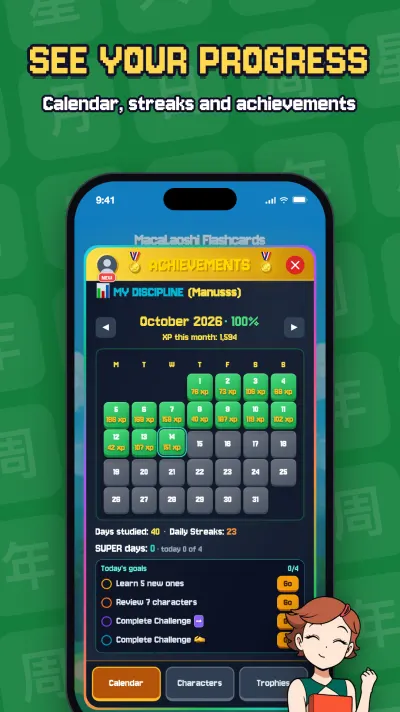
Improve your Chinese with Macalaoshi Flashcards
Maca Laoshi's app for learning characters, with audio, pinyin and stroke-by-stroke writing.
- 1,300+words and characters
- HSK 1–4by level
- Freeto start




Learn with our songs
We made them for Macalaoshi. Singing along is a fun way to practice pronunciation and review vocabulary.

The Lighthouse of My Heart 我心里灯塔

Study With You 跟你一起学
Frequently asked questions
How do I add the Chinese keyboard on my iPhone?
Go to Settings > General > Keyboard > Keyboards > Add New Keyboard, choose simplified Chinese and select Pinyin (QWERTY).
How do you type ü on a Chinese keyboard?
With v. For example, for 绿 (lǜ, green) you type lv. That's how Apple documents it for its Pinyin keyboard on the Mac.
Do I need to type the tones to write in Chinese?
No. You type the pinyin without tones and pick the character from the list of candidates: for example, you type ping and choose 苹.
How do I type a Chinese character if I don't know how to pronounce it?
Use handwriting: the iPhone's Handwriting keyboard, Trackpad Handwriting on a Mac or, on Android, Gboard's Handwriting layout if it's available for Chinese. You draw the character with your finger and pick it from the list.
How do I switch between the Chinese and English keyboards?
On an iPhone, touch and hold the Switch Keyboard key; in Gboard, touch and hold the space bar; on Windows, press Windows + Spacebar; on a Mac, press Control + Space bar.
Maca Laoshi, born in Beijing, has taught Mandarin Chinese for more than 22 years and has had over 1,500 students. Together with her son Manu Shi, who has more than 93,000 subscribers on YouTube, she created Macalaoshi, an app that challenges you to push yourself one character at a time. Few Chinese teachers can show both: their own app and a channel like that.
Sources
- Apple, iPhone User Guide (iOS 27): Add or change keyboards on iPhone.
- Apple, iOS and iPadOS 27 Feature Availability: Chinese (Simplified) keyboards, including Pinyin (QWERTY) and Handwriting.
- Apple, iPhone User Guide: choosing candidates on a Chinese keyboard.
- Gboard Help: Type in a different language (add and switch languages).
- Gboard Help: Handwrite on your keyboard (Handwriting layout).
- Microsoft: add a language and a keyboard in Windows 11, and switch with Windows + Spacebar.
- Microsoft: Simplified Chinese IME (Microsoft Pinyin), keyboard shortcuts and U-mode.
- Apple, Mac User Guide: Write in another language on Mac and switch input sources.
- Apple, Chinese Input Method User Guide: Pinyin - Simplified, v instead of ü, and Abbreviated Pinyin.
- Apple: Use Trackpad Handwriting to write Chinese on Mac.
- Apple, Mac User Guide: the ABC - Extended input source lets you add pinyin tone marks.
- Apple, iPhone User Guide: the ABC - Extended layout for Magic Keyboard, with pinyin tone marks.
This guide in other languages: Español · Português · Français · Deutsch · Italiano · 日本語 · 한국어